
Curating a Checklist
Last updated: 3 Jul 2026
Curating a Checklist
A Checklist is a list of items or expectations that need to be completed, typically organized in a systematic manner. It serves as a tool for ensuring that all necessary steps are taken or items are addressed in a particular process, project, or activity. This checklist can be used when defining an activity for an actioner, verifier or acceptor.
This guide is to help you to curate a new or maintain existing checklist for the marketplace.
- Navigate to Project Listing Page.
- Click on the Create button to create a new product.
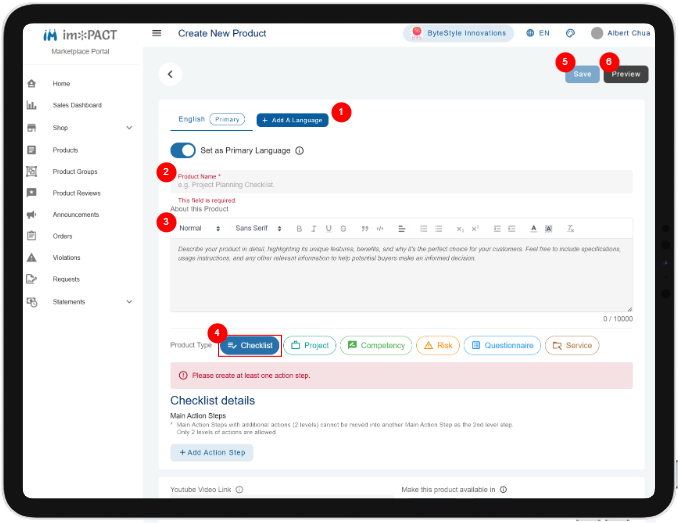
**Add A Language:
 ** The default language is English. You may add additional languages for your product to reach a wider audience.
Product Name: Give your product a name. This will appear as the product title in the marketplace when it's published. Be consise, descriptive and direct.
**About this Product:
** The default language is English. You may add additional languages for your product to reach a wider audience.
Product Name: Give your product a name. This will appear as the product title in the marketplace when it's published. Be consise, descriptive and direct.
**About this Product:
 ** This is where you market your product and attract your consumers. Give a much detail as possible without going overboard. This will appear as the product description in the marketplace when this product is published.
 **Product Type:
 ** Select Project button for Checklist.
**Save Button:
** Select Project button for Checklist.
**Save Button:
 ** Click this button to save your product. Save your product frequency to avoid any missing updates. **Preview Button:
 ** Click this button to view how your product will look like in the markeplace.
 3. You can specify a checklist with up to 2 levels deep, which we call the Main Action Steps and Sub Steps. At each level, you can define unlimited Main Action Steps and Sub Steps.
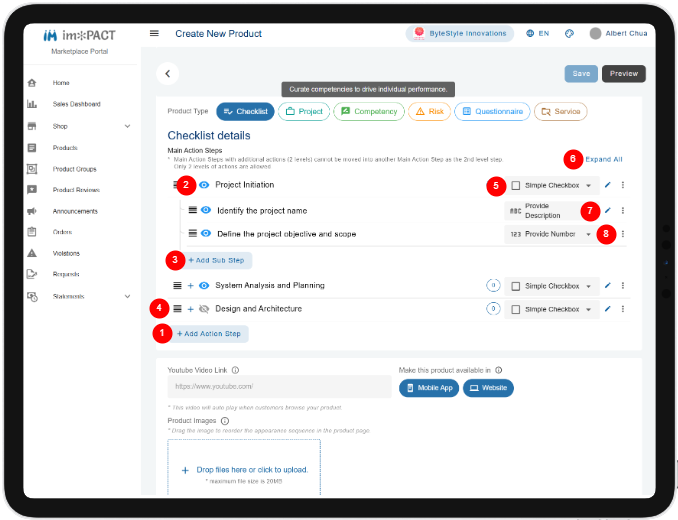 **Add Action Step Button:
** Click on this button to create a new Main Action Step. Specify a short title for this step.
Show Icon: Click this icon if you want to reveal this step in the marketplace as a preview. If the icon is grey, then this step will not be displayed until this product is purchased.
**Add Sub Step Button:
** Click on this button to create a new Sub Action Step. Specify a short title for this step.
**Reorder Icon:
** Click and hold (do not release) on this icon to reorder this step in relation to other steps in this checklist. It can be: Reordered within the same level. **** Moved from the a Sub Action Step to a become a Main Action Step, or Moved from 1 Main Action Step to another Main Action Step. **User Response Types:
** Click this to change to the type of responses you expected the user to provide to complete this checklist. The follows user response types are supported: Simple Checkbox: Users are only required to check off the step to mark completion. This is the default user response. **** Provide a Number: Users are expected to enter a number. Submit a Picture: Users are expected to take 1 or more pictures and upload it. Upload Files: Users are expected to upload 1 or more files. Provide Description: Users are enter some textual information regarding the step. Multiple Choices: Users are expected to select 1 or more items in a list of preconfigured selections. Choose One Option: Users are expected to select only 1 item in a list of preconfigured selections. Submit a Range of Values: Users are expected select a range of numbers. Time and Date: Users are expected to enter a time and date. Submit an Amount: Users are only required to enter an amount. Yes-No Answer: Users are expected to select either yes or no. Provide A Metrics: TBC You can specify more validation rules (eg: mandatory field, etc) to control how you want the user to enter the information by clicking on the Edit Icon. **Expand/Collapse All:
** Click this expand to show or collapse to hide all Sub Action Steps. **Edit Icon:
 ** Click this icon to show the Main Action Step or Sub Action Step details screen. You can edit the step in this screen. **More Actions:
 ** Click this to either duplicate or delete an activity.
4. After you click on the Edit Icon, you will be able to specify more information for the step. A pop up window will appear.
** Click this to either duplicate or delete an activity.
4. After you click on the Edit Icon, you will be able to specify more information for the step. A pop up window will appear.
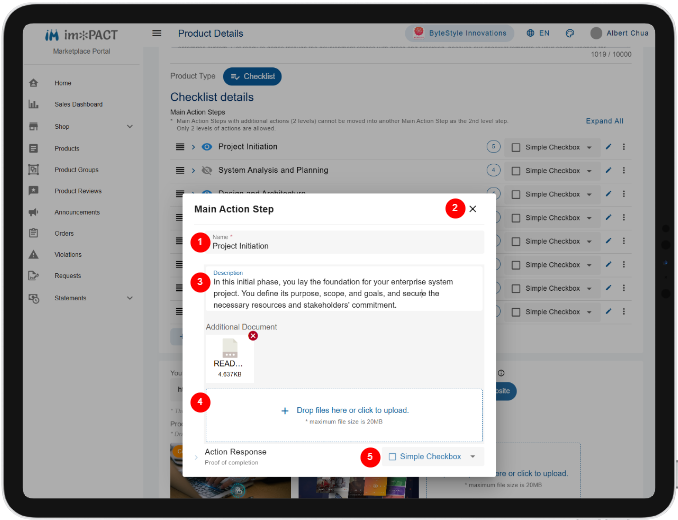 **Name:
** Specify a short description for your step. This a mandatory field.
Close Icon: Click this icon if you want to save and exit this pop up window.
**Description:
** Specify a description for your step. This can be used to describe the approaches to complete this step. This is an optional field.
**Documents:
** Users can upload reference documents to guide the user to complete this step.
**User Response Types:
** Click this to change to the type of responses you expected the user to provide to complete this checklist. Simple Checkbox: Users are only required to check off the step to mark completion. There are not additional configuration supported. **** Provide a Number: Users are expected to enter a number. You can specify these additional configuration: Additional Instructions: Advise users with a short description on what to fill in. This is an optional field. Mandatory: Whether this is mandatory field. Whole Numbers Range: Users must specify a number within this range. Decimal Places: Whether the number provided has decimal places. Submit a Picture: Users are expected to take 1 or more pictures and upload it. Additional Instructions: Advise users with a short description on what to fill in. This is an optional field. Mandatory: Whether this is mandatory field. Number of Images: Users must upload images within this range. Eg: If 2 to 5 is specified, users must at least upload 2 or up to 5 images. Upload Files: Users are expected to upload 1 or more files. Additional Instructions: Advise users with a short description on what to fill in. This is an optional field. Mandatory: Whether this is mandatory field. Number of Files: Users must upload file within this range. Eg: If 1 to 3 is specified, users must at least upload 1 or up to 3 files. Provide Description: Users are enter some textual information regarding the step. Additional Instructions: Advise users with a short description on what to fill in. This is an optional field. Mandatory: Whether this is mandatory field. Length: Maximum number of characters allowed to enter. Multiple Choices: Users are expected to select 1 or more items in a list of preconfigured selections. Additional Instructions: Advise users with a short description on what to fill in. This is an optional field. Mandatory: Whether this is mandatory field. List of Choices: Specify a list of options for users to select. This is a mandatory field. Choose One Option: Users are expected to select only 1 item in a list of preconfigured selections. Additional Instructions: Advise users with a short description on what to fill in. This is an optional field. Mandatory: Whether this is mandatory field. List of Choices: Specify a list of options for users to select. This is a mandatory field. Submit a Range of Values: Users are expected select a range of numbers. Additional Instructions: Advise users with a short description on what to fill in. This is an optional field. Mandatory: Whether this is mandatory field. Range of Numbers: Users must specify a number within this range. Decimal Places: Whether the number provided has decimal places. Time and Date: Users are expected to enter a time and date. Additional Instructions: Advise users with a short description on what to fill in. This is an optional field. Mandatory: Whether this is mandatory field. Response Type: Specify either Date and Time, Date Only or Time Only Submit an Amount: Users are only required to enter an amount. Additional Instructions: Advise users with a short description on what to fill in. This is an optional field. Mandatory: Whether this is mandatory field. Currency of Amount: Specify the currency to appear beside the amount. Smallest Amount: Users must specify a number not smaller than this amount. Largest Amount: Users must specify a number not larger than this amount. Yes-No Answer: Users are expected to select either yes or no. Additional Instructions: Advise users with a short description on what to fill in. This is an optional field. Mandatory: Whether this is mandatory field. Provide A Metrics: TBC Select a Metrics: TBC Mandatory: Whether this is mandatory field.
5. Other marketing details for your product.
**Youtube Video Link:
** Specify a link to a short Youtube video to describe and promote your product. This is an optional field.
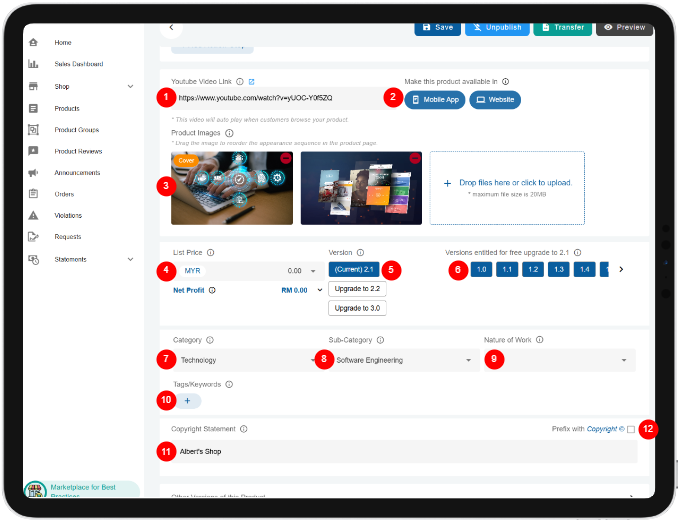 **Product Availability:
** Specify whether the product is available in the mobile or web platform. **Product Image:
** Specify a few images to illustrate your product in the marketplace. You are upload up to 7 images.
**List Price:
** Specify the list price to appear in the marketplace.
**Version:
** Specify the current version of this product. Once a product is published, you can either modify an existing product of the same version or increment the product to a different version. By incrementing the product version, a duplicated product will be created. You can therefore change the list price for the new version. You are not allowed to downgrade a lower version.
**Free Upgrade:
** Specify the previous versions which are entitled for free upgrade to the current version. This only appears when you have older version of the product, previously published in the marketplace. **Category:
** Specify the category the product belongs to for ease of searching. This is an optional field. **Sub Category:
** Specify the sub-category the product belongs to. This is an optional field.
**Nature of Work:
 ** Specify the nature of work this product is applicable to. This is an optional field.
**Tags/Keywords:
** Specify the nature of work this product is applicable to. This is an optional field.
**Tags/Keywords:
 ** Describe the keywords for customer to search this product easier in the marketplace. This is an optional field.
**Copyright Statement:
** Describe the keywords for customer to search this product easier in the marketplace. This is an optional field.
**Copyright Statement:
 ** Specify a copyright statement to be included with this product in the marketplace. This is to inform the licensing terms of your product. Eg: Mykongsi Sdn Bhd, Public Domain, etc
**Copyright Prefix:
** Specify a copyright statement to be included with this product in the marketplace. This is to inform the licensing terms of your product. Eg: Mykongsi Sdn Bhd, Public Domain, etc
**Copyright Prefix:
 ** Specify if the word Copyright © appears before the Copyright Statement. Eg: Copyright © Mykongsi Sdn Bhd. Please use this only when you are certained that you have copyright over this product.